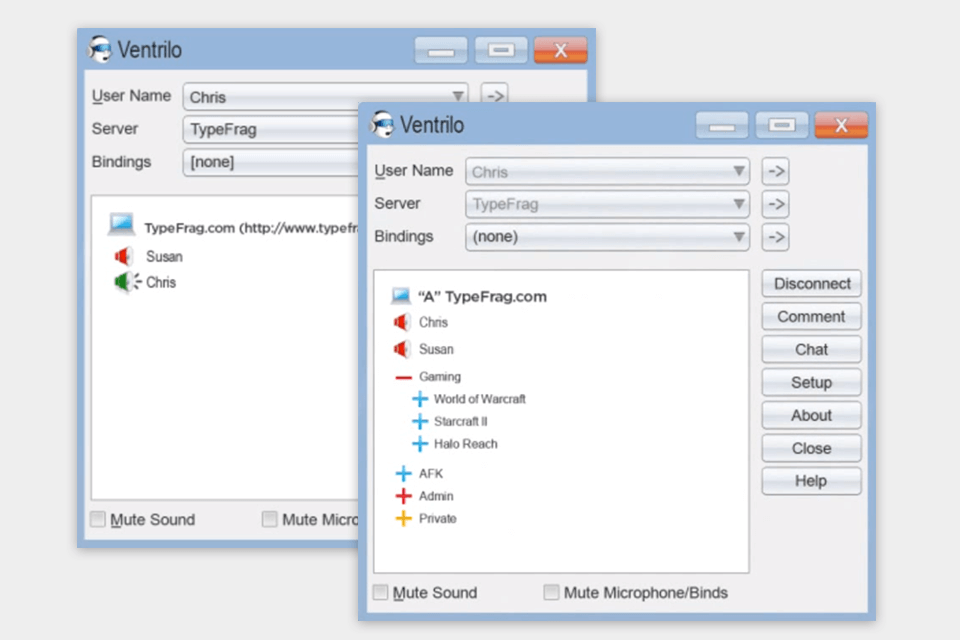
Diagnosing and Eliminating Ventrilo Echo: A Comprehensive Guide
Understanding the Source of the Problem
Ventrilo, a venerable voice communication program, while reliable, can sometimes present users with the frustrating issue of echo. This auditory feedback loop can disrupt communication, making it difficult to understand fellow users. Echo in Ventrilo typically arises from a few key sources: incorrect audio settings, hardware conflicts, or even simple misconfigurations. Identifying the root cause is the first step towards a clear, echo-free conversation. Let's be honest, nobody enjoys hearing their own voice bouncing back at them, especially when you're trying to strategize a raid or just catch up with friends.
One common culprit is the "listen to this device" setting within Windows' sound properties. When activated, it routes your microphone input directly back to your speakers, creating an echo. This is often inadvertently enabled after driver updates or system changes. Another issue can stem from using speakers and a microphone in close proximity. This creates a physical loop where the microphone picks up the sound from the speakers, leading to feedback. We've all seen those comical videos of microphones and speakers getting too close, right? Well, in Ventrilo, it's less funny and more annoying.
Hardware issues, such as faulty cables or improperly connected audio devices, can also contribute to echo. Loose connections or damaged wires can introduce noise and feedback into the audio signal. Furthermore, outdated or incompatible audio drivers can cause conflicts with Ventrilo, resulting in unexpected audio behavior. It's like trying to run a modern app on a vintage computer—compatibility issues are practically guaranteed.
Finally, Ventrilo's own settings can be a source of echo. Incorrectly configured audio codecs, volume levels, or input/output devices within the program can lead to feedback loops. It is essential to ensure that Ventrilo is using the correct audio devices and that the volume levels are appropriately adjusted. Let's face it, sometimes the simplest solution is just checking the settings.
Adjusting Windows Sound Settings for Echo Reduction
Disabling "Listen to this device"
The "listen to this device" setting in Windows sound properties is a frequent cause of Ventrilo echo. To disable it, navigate to the Sound settings in your Control Panel or System Settings. Select the "Recording" tab, right-click on your microphone, and choose "Properties." In the "Listen" tab, ensure that the "Listen to this device" checkbox is unchecked. This simple adjustment can often eliminate the echo problem.
Another crucial step is to ensure that your default playback and recording devices are correctly selected. In the Sound settings, go to the "Playback" and "Recording" tabs and verify that the correct speakers and microphone are set as default. Incorrect device selection can lead to audio routing issues and echo. It’s like telling your GPS to take you to the wrong destination, you won’t get there.
Volume levels within Windows sound settings also play a significant role. Excessive microphone gain can amplify ambient noise and feedback, leading to echo. To adjust the microphone gain, go to the "Recording" tab in the Sound settings, select your microphone, and click "Properties." In the "Levels" tab, reduce the microphone gain to a reasonable level. Test your microphone to ensure that your voice is still clear and audible.
Furthermore, ensure that any sound enhancements or effects are disabled. These enhancements, such as noise suppression or echo cancellation, can sometimes interfere with Ventrilo's audio processing and introduce unwanted feedback. To disable these enhancements, go to your microphone's "Properties" in the Sound settings, navigate to the "Enhancements" tab, and check the "Disable all enhancements" box. Sometimes the best enhancement is no enhancement.
Configuring Ventrilo Audio Settings for Optimal Performance
Selecting Correct Input and Output Devices
Ventrilo's audio settings must be configured correctly to prevent echo. Open Ventrilo, go to "Setup," and select the "Voice" tab. Ensure that the correct input and output devices are selected. Ventrilo allows you to choose specific devices for input and output, which is crucial for preventing audio routing conflicts. Double checking these settings is a must.
The codec settings within Ventrilo also impact audio quality and echo. Experiment with different codecs to find the one that provides the best balance between audio quality and performance. Lower bitrate codecs may reduce echo but can also degrade audio quality. It’s a balancing act, like trying to find the perfect spice level for your food.
Ventrilo's volume control and sensitivity settings are critical for preventing echo. Adjust the microphone sensitivity to ensure that it only picks up your voice and not ambient noise. Experiment with the volume levels to find the optimal settings. Too high or too low volume can contribute to echo. Don't be afraid to test and tweak.
Additionally, ensure that any other audio applications that might be running in the background are not interfering with Ventrilo. Close unnecessary programs to minimize potential conflicts. Background noise from other programs can easily be picked up by your microphone and cause echo. It’s like trying to have a conversation in a crowded room, too much going on.
Hardware Solutions for Echo Elimination
Optimizing Microphone and Speaker Placement
The physical placement of your microphone and speakers can significantly impact echo. Position your microphone away from your speakers to minimize the risk of feedback. Using a headset with a built-in microphone can also help reduce echo by minimizing the distance between the microphone and your mouth. A good headset is an investment in clear communication.
Using high-quality audio cables and connectors can improve audio signal integrity and reduce the risk of noise and feedback. Ensure that all cables are securely connected and free from damage. Faulty cables can introduce unwanted noise and echo. It’s like using a worn out hose, leaks are inevitable.
Consider using a dedicated sound card or audio interface to improve audio processing and reduce echo. External sound cards can provide better audio quality and more control over audio settings. This can be a significant upgrade for serious Ventrilo users.
If you're using a desktop microphone, consider using a pop filter to reduce plosive sounds and improve clarity. Pop filters can prevent sudden bursts of air from hitting the microphone, which can cause distortion and echo. This small addition can make a big difference.
Troubleshooting Common Echo Issues
Addressing Specific Scenarios
Sometimes, the echo issue may be specific to certain scenarios, such as using a specific microphone or headset. If you're experiencing echo with a particular device, try using a different microphone or headset to see if the problem persists. This can help isolate the source of the issue.
If you're using a USB microphone, ensure that it is connected directly to your computer and not through a USB hub. USB hubs can sometimes introduce latency and interference, which can contribute to echo. Direct connections are always preferable.
Software conflicts can also cause echo. Ensure that your operating system and audio drivers are up to date. Outdated drivers can cause compatibility issues and lead to unexpected audio behavior. Keeping everything updated is like keeping your car well maintained.
If all else fails, consider reinstalling Ventrilo. A fresh installation can resolve any software glitches or corrupted files that may be causing the echo. Sometimes, a clean slate is the best solution. Don't be afraid to start over.
Frequently Asked Questions (FAQ)
Addressing Common Concerns
Q: Why do I hear my own voice echoing in Ventrilo?
A: Echo in Ventrilo is often caused by incorrect audio settings, such as the "listen to this device" option in Windows, or physical proximity between your microphone and speakers. Incorrect Ventrilo settings can also be a factor.
Q: How do I disable the "listen to this device" setting?
A: Go to your Windows Sound settings, select the "Recording" tab, right-click your microphone, choose "Properties," and uncheck the "Listen to this device" box in the "Listen" tab.
Q: What Ventrilo settings should I check to reduce echo?
A: Ensure that you have selected the correct input and output devices in Ventrilo's "Voice" settings. Adjust microphone sensitivity and volume levels, and experiment with different codec settings.
Q: Can hardware issues cause Ventrilo echo?
A: Yes, faulty cables, improperly connected devices, and outdated drivers can all contribute to echo. Optimizing microphone and speaker placement is also essential.

Ventrilo Quistian X C013 Huff (dagames⁵) Fix Our Ambush The Purple

Ventrilo Quistian² (cg5² X Or3o) Show Your Suspicious 2 Me (mashup

How To Connect Ventrilo Via Android

Rp Vs Efes+ventrilo.avi Youtube
Prank Calls In Ventrilo With Voice Changer Software


No comments:
Post a Comment